Initiate a staged multitenant device upgrade in MSSP portal
When you initiate a staged upgrade, you select packages, upload them to the selected devices, and perform readiness checks. These checks verify that the upgrade can be successfully performed later.
Tip | You can use staged upgrade to prepare for the upgrade before your maintenance window, which allows the full upgrade to finish more quickly during the actual upgrade window. |
Use this procedure to initiate a staged upgrade.
Procedure
Step 1 | Choose . | ||
Step 2 | Click Begin an Upgrade and select FTD Upgrade or ASA Upgrade from the drop-down list. 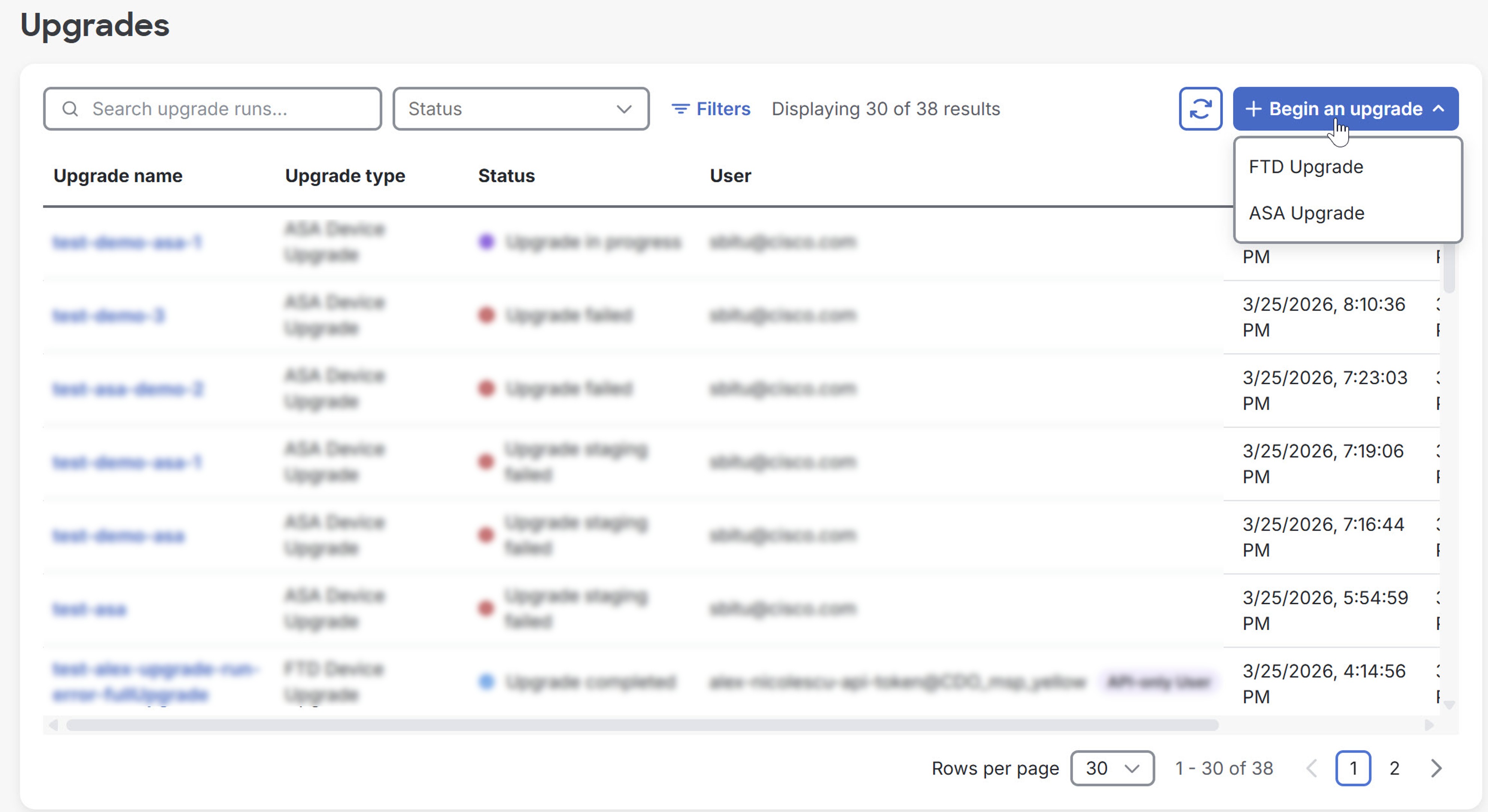 | ||
Step 3 | Enter a name for your upgrade, select the devices you want to upgrade, and click Next. Filter the devices using the Model or Tenant drop-down list at the top of the Device Upgrades page.
| ||
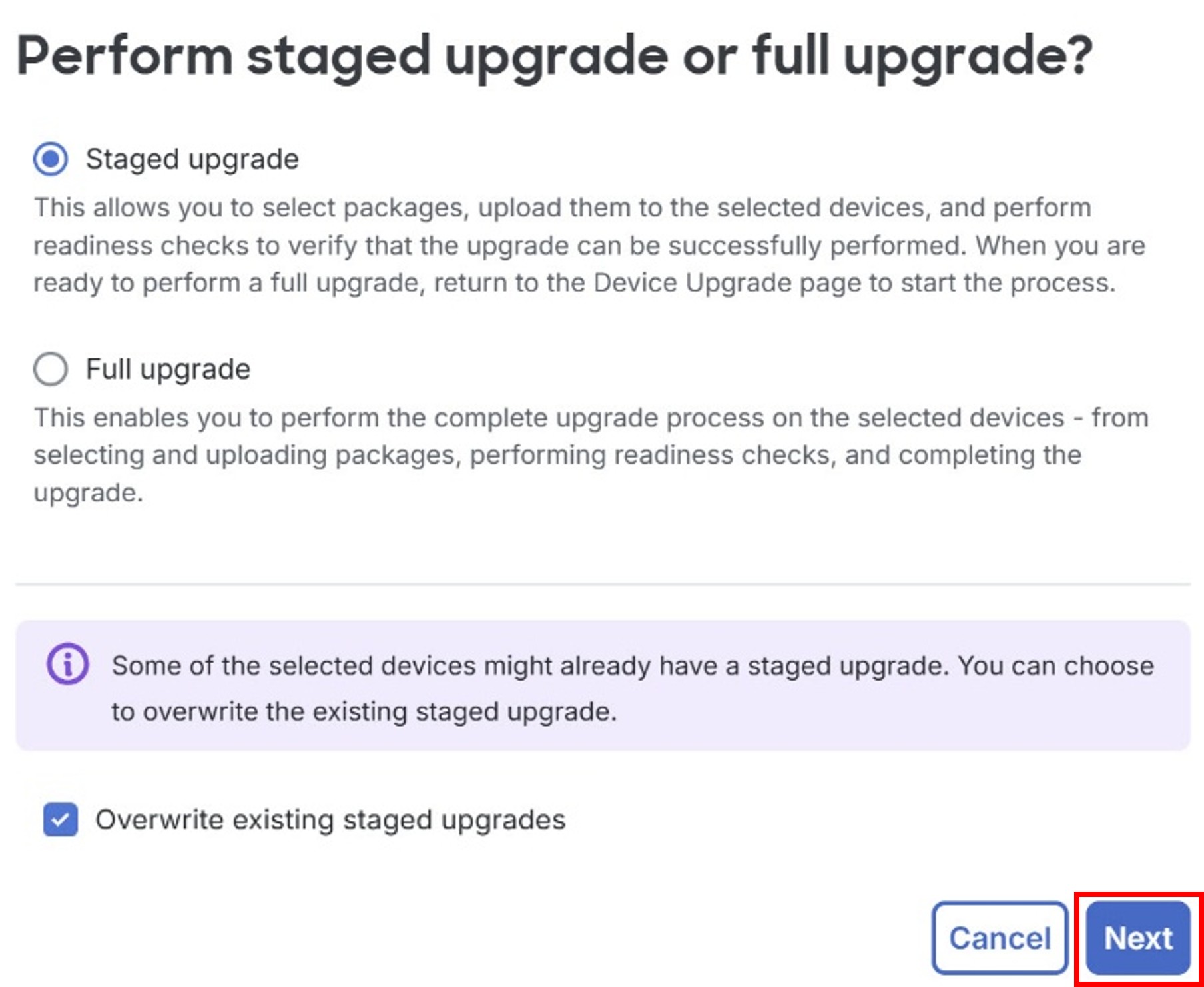
Step 4 | Click the Staged upgrade button in the dialog box that is displayed and then click Next. For ASA upgrades, select the Overwrite existing staged upgrades check box to overwrite the existing staged upgrades, if any, for the selected devices.
| ||
Step 5 | For ASA upgrades, select a software version. You can use the search fields to search devices by the software version. Click Select ASDM version. For FTD upgrades, select an upgrade package from the list of Threat Defense packages available for the selected devices and click Perform upgrade. Note that not all the devices are compatible with all the packages. | ||
Step 6 | For ASA upgrades, select the ASDM version to be installed on the selected devices or select the Skip ASDM version upgrade check box to retain the current ASDM version and upgrade only the software version. Note that this step is not required for FTD upgrades. | ||
Step 7 | Click Upload packages. Note that not all the devices are compatible with all the packages. | ||
Step 8 | To cancel the package upload, click Exit. After your package is uploaded, the message Upgrade package uploaded and staged appears under the Status column in the Upgrades page. | ||
Step 9 | Click Exit. Your upgrade package is staged and ready to be installed. You will see the Upgrade staged status in the Upgrades page under the Status column. When ready, click the name of your upgrade under the Upgrade name column in the Upgrades page to proceed with the full upgrade. |