Upgrade ASA and ASDM Images in a high availability pair
Procedure
Step 1 | In the left pane, click . |
Step 2 | Click the Devices tab. |
Step 3 | Select the device you want to upgrade. |
Step 4 | In the Device Actions pane, click Upgrade. Notice that the failover mode of the device is Active/Standby: 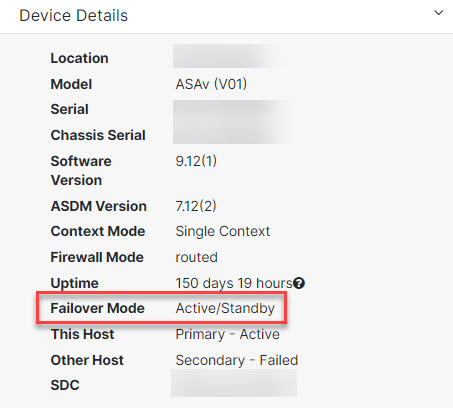 |
Step 5 | (Optional) If you want Secure Firewall Management Center to perform the upgrade later, select the Schedule Upgrade check box. Click the field to select a date and time in the future. When you are done, click Done. |
Step 6 | In step 1, click Use SCC Image Repository to select the ASA software image you want to upgrade to, and click Continue. If you are upgrading from images stored in your own repository, select Specify Image URL and enter the image location. Supported protocols include FTP, TFTP, HTTP, HTTPS, SCP, and SMB. See Custom URL Upgrade for URL syntax information. |
Step 7 | In step 2, select the ASDM image you want to upgrade to. You are only presented with ASDM choices that are compatible with the ASA you can upgrade. |
Step 8 | In step 3, confirm your choices and decide whether you only want to download the images to your ASAs or copy the images, install them, and reboot the device. |
Step 9 | Click Perform Upgrade. |
Secure Firewall Management Center automatically performs the HA upgrade workflow described earlier.
Note | The upgrade process is designed to provide near-zero downtime. If the upgrade of the standby device fails, the process stops and a failure notification is sent by email or webhook, if configured, or displayed in the user interface. |