Restore an ASA configuration
Restore a device to a chosen earlier configuration version maintained in Cisco Defense Orchestrator to recover from misconfiguration or roll back recent changes.
Use Cisco Defense Orchestrator to select and compare saved ASA configurations, then stage and deploy the restore to synchronize the device.
Before you begin
Follow these steps to restore an ASA configuration:
Procedure
Step 1 | In the left pane, click . |
Step 2 | Click the ASA tab. |
Step 3 | Select the ASA whose configuration it is you want to restore. |
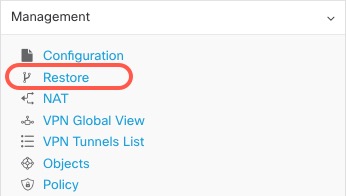
Step 4 | In the Management pane, click Restore. |
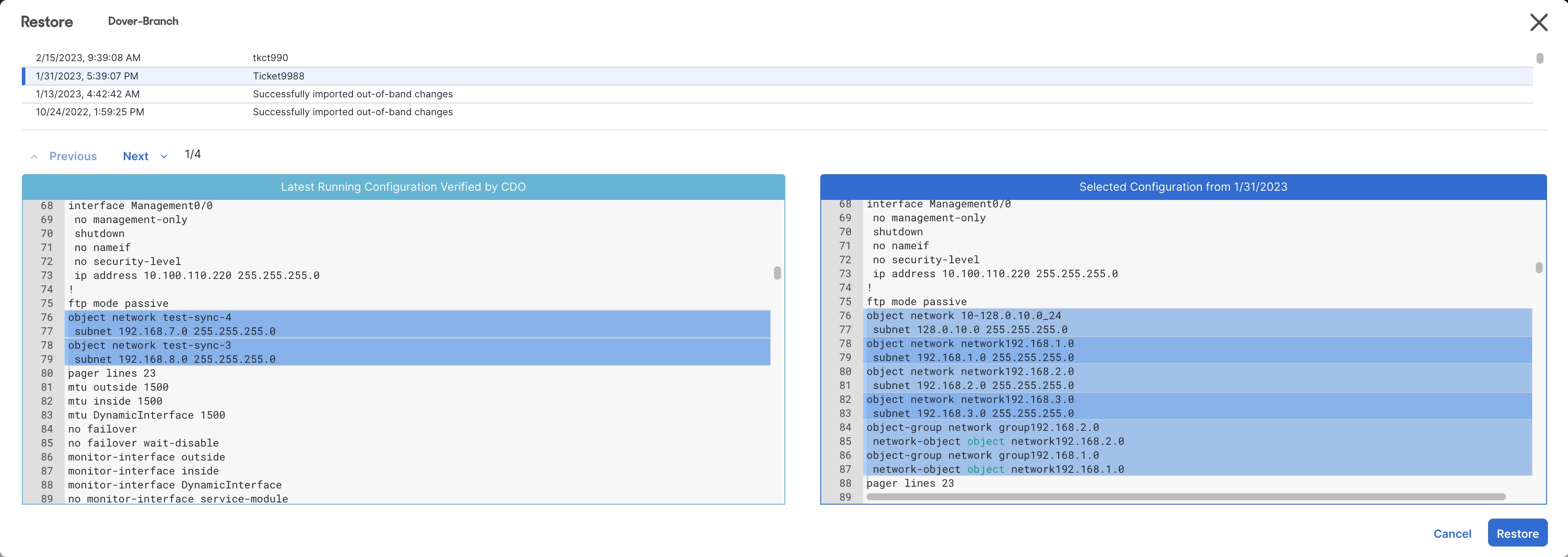
Step 5 | In the Restore page, select the configuration you want to revert to. |
Step 6 | Compare the "Latest Running Configuration Verified by Security Cloud Control" and the "Selected Configuration from <date>" to ensure you want to restore the configuration displayed in the Selected Configuration from <date> window. Use the Previous and Next to compare all the changes. |
Step 7 | Click Restore, this stages the configuration in Security Cloud Control. In the Security Devices page, you see that the configuration status of the device is now "Not Synced." |
Step 8 | Click Deploy Changes... in the right-hand pane to deploy the changes and sync the ASA. |
The selected configuration is restored and deployed. The ASA is synchronized, and the device reflects the restored configuration.